The Google Play Store is a treasure trove of digital content, a vibrant hub where Android users can discover millions of apps, games, tools, and entertainment options to elevate their mobile experience. Far beyond just a simple download platform, it's packed with powerful, often overlooked features designed to boost your productivity, enhance your entertainment, and keep your device secure.
This tutorial will take you on a friendly exploration of some of the most impactful Google Play Store features, helping you unlock the full potential of your Android device. Get ready to transform how you find, manage, and enjoy your favorite digital content!
Be First in Line: Pre-registration for New Releases
Try Before You Buy (or Install): Instant Apps
Keeping You Safe: Google Play Protect
Easy Control: Subscription Management
Rewarding Your Loyalty: Google Play Points and Promotions
Frequently Asked Questions (FAQ)
Key Takeaways
1. The Vast World of Apps and Games
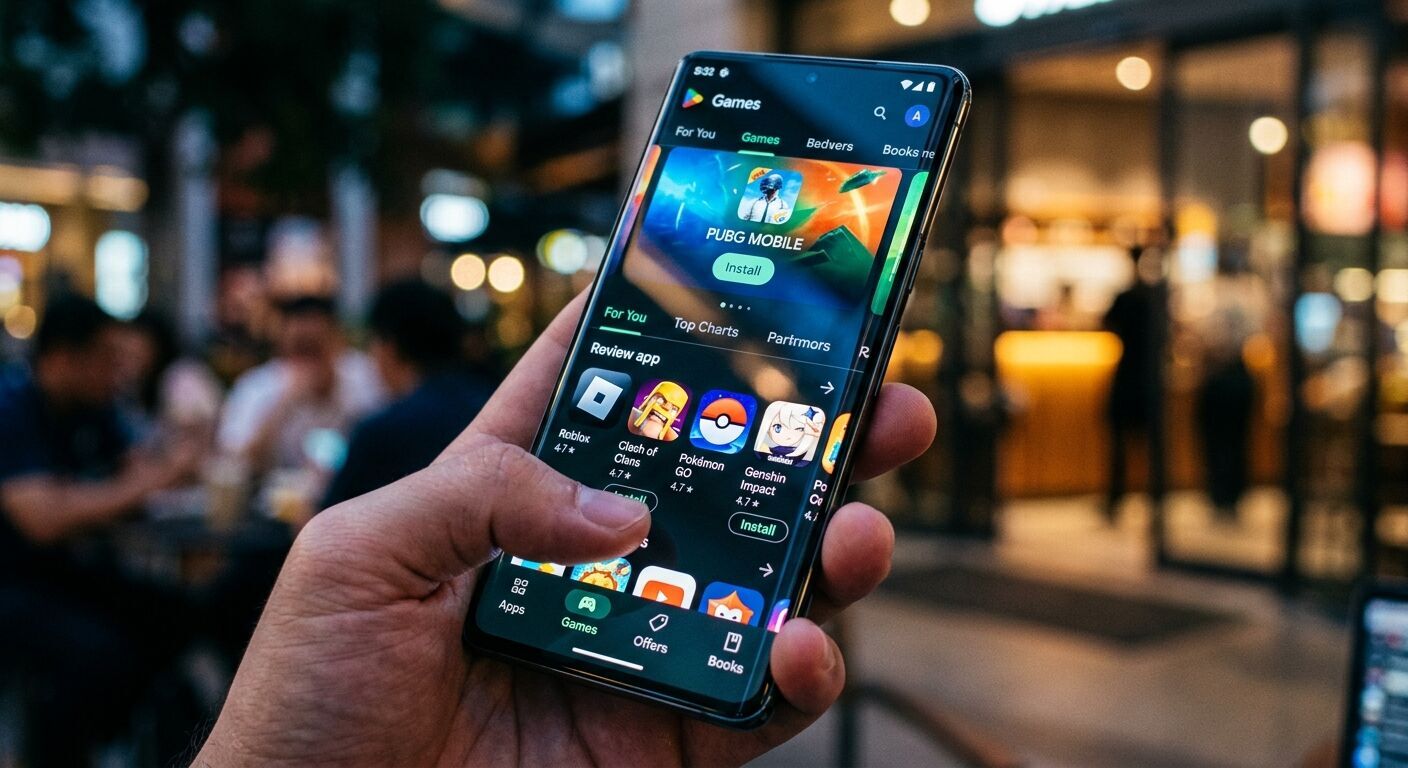
The Google Play Store is your ultimate destination for an immense collection of digital content, serving as the primary hub for every Android user seeking new applications and exciting games. With millions of apps readily available, it genuinely offers something for absolutely everyone. Whether your goal is to boost productivity with cutting-edge tools, immerse yourself in engaging entertainment, or explore innovative utilities, this vast library allows you to transform your Android device into a powerful computing companion, perfectly tailored to your unique needs and interests.
Navigating this extensive selection is surprisingly easy, thanks to a well-organized system of categories, editor's choices, and personalized recommendations. Google has done an excellent job of categorizing these apps, offering over 40 distinct groups that range from essential tools like Android Auto and Finance to more niche areas like Video Players and Weather. This thoughtful organization helps you quickly narrow down your search for specific types of content. Plus, you can delve into user reviews and ratings, which are incredibly helpful for making informed decisions about which apps truly deserve a spot on your device.
But the Play Store isn't just about apps and games! It also boasts a wide array of movies, TV shows, e-books, and audiobooks, providing a complete digital entertainment and content platform right at your fingertips. Searching for any type of content is straightforward; simply use the search bar located at the top of the Play Store app, and you'll be well on your way to discovering your next favorite digital experience.
2. Discovering More with Google Play Pass
If you're a devoted fan of premium apps and games but find yourself constantly annoyed by intrusive ads and pesky in-app purchases, then Google Play Pass is a feature that you're absolutely going to adore! This fantastic subscription service grants you unlimited access to a carefully curated collection of over 1,000 apps and games that are completely unlocked. This means you get to enjoy them without any ads, no upfront payments, and all those tempting in-app purchases are already included. Think of it as an all-you-can-play buffet for your Android device, with new and exciting titles being added regularly to keep things fresh.
Play Pass is committed to offering a high-quality selection of titles, encompassing everything from popular, critically acclaimed games to incredibly useful productivity apps. This ensures that there's always something new and intriguing to explore, and best of all, you don't have to worry about any hidden or additional costs. This service can significantly enhance your overall Android experience by letting you freely try out premium content that you might otherwise hesitate to purchase. An added bonus is that you can install these apps on multiple devices, as long as the Google account used for the subscription is active on those devices, making it super convenient.
Getting started with Google Play Pass is a breeze! Simply open the Google Play Store app on your device, look for the Play Pass tab or a prominent banner, and then follow the simple prompts to subscribe. There's often a generous free trial available, which is a fantastic opportunity to explore the extensive offerings before you commit to a monthly or yearly subscription. And here's another great tip: Family managers can share their Play Pass subscription with up to five other family members, allowing everyone in the household to enjoy the benefits individually and access all that amazing content!
3. Sharing the Fun with Family Library
The Google Play Family Library is an absolutely brilliant feature that truly makes digital content sharing a joy within your household. It allows you to share eligible purchased apps, games, movies, TV shows, e-books, and audiobooks with up to five other family members. Imagine this: if just one person in your family buys a great app or an entertaining movie, everyone in your family group can enjoy it without anyone having to purchase it again! This not only saves you money but also significantly broadens everyone's access to a fantastic array of content.
Setting up your Family Library is a straightforward and simple process. First, you'll need to create a family group if you haven't already done so. Once your family group is established, you can then invite your family members to join. After it's all set up, you have the flexibility to choose whether to automatically add all eligible future purchases to the Family Library, or you can opt to manually add items as you acquire them. This feature is particularly useful for those premium apps that everyone wants, engaging educational games for the kids, or ensuring everyone has access to the latest family movie night selection.
To set up your Family Library and start sharing:
Open the Google Play Store app on your Android device.
Tap your profile icon, which you'll usually find at the top right corner of the screen.
Go to "Settings" then navigate to "Family" and select "Sign up for Family Library".
Simply follow the clear on-screen instructions to complete the setup process.
To add a purchased app or game to the Family Library, tap on the app's details page and look for the "Family Library" option – just turn it on!
4. Your Personal "To-Do" List: The Wishlist
Have you ever stumbled upon an intriguing app, a captivating game, or a must-watch movie in the Google Play Store, but you weren't quite ready to install or purchase it immediately? Well, the Google Play Store's Wishlist feature is absolutely perfect for these exact situations! It provides you with a fantastic way to create a personal, curated list of apps, games, movies, books, and other digital content that you want to check out later. You can think of it as your very own digital shopping cart, or perhaps a handy "read later" list, specifically designed for all things delightful in the Play Store.
The Wishlist proves to be incredibly useful for keeping meticulous track of all the content that catches your eye, especially if you're patiently waiting for a potential price drop, or if you simply want to compare several different options before making a commitment. While the items you add to your wishlist won't be automatically downloaded or purchased, there's an extra perk: some apps might even send you helpful notifications if there are any price changes or special offers that relate directly to those specific items you've added. It’s like having a personal shopper looking out for your interests!
Adding and managing items in your Wishlist is delightfully easy and intuitive:
First, open the Google Play Store app on your device.
Next, search or browse for the app, game, or any other content you're interested in saving for later.
On the item's details page, simply tap the "More" icon – it usually looks like three vertical dots – located at the top of the screen.
Then, tap "Add to wishlist" (this option often appears as a bookmark icon).
To view your carefully compiled Wishlist, tap your profile icon at the top right, then select "Library", and finally, tap "Wishlist". From here, you can tap on any item to view its details, install it when you're ready, or easily remove it from your list if your interests change.
Keeping your apps updated is more than just getting new features; it's absolutely crucial for maintaining the security, performance, and overall health of your Android device. The Google Play Store offers incredibly robust automatic update options, ensuring that your device runs smoothly and efficiently without you needing to constantly intervene. By default, most apps are often set to update automatically over Wi-Fi, especially when your device is charging and sitting idle, making the process completely hassle-free.
You have complete control over how and when your apps update, giving you significant flexibility. You can choose to update all apps automatically over any network (though be mindful of potential data charges if you're not on Wi-Fi!), opt for updates only over Wi-Fi, or even disable automatic updates entirely for all apps if you prefer a fully manual approach. Furthermore, you can manage automatic updates for individual apps. This allows you to keep critical applications, like your banking app, manually updated only after you've had a chance to verify their new versions, while allowing less sensitive apps to update automatically.
To effortlessly manage your app update settings and tailor them to your preferences:
To update all apps automatically:
Open the Google Play Store app.
Tap your profile icon at the top right.
Tap "Settings" then "Network preferences" and select "Auto-update apps".
Choose your preferred option: "Over any network", "Over Wi-Fi only", or "Don't auto-update apps".
To manage individual app auto-updates:
Open the Google Play Store app.
Tap your profile icon, then "Manage apps & device", and then "Manage".
Find and tap the specific app you want to manage.
On the app's details page, tap the "More" icon (the three vertical dots) and simply check or uncheck "Enable auto update" to toggle it on or off.
6. Be First in Line: Pre-registration for New Releases
Are you brimming with excitement for an upcoming app or a highly anticipated game? The Google Play Store's pre-registration feature is your golden ticket to express early interest, even before the official launch day! By pre-registering, you effectively get in line to be among the very first to experience brand-new content, building up anticipation and ensuring that you absolutely do not miss out on its grand release. It’s like getting VIP access to the newest digital innovations!
One of the biggest and most exciting advantages of pre-registration is receiving timely launch notifications. When that coveted app or game finally becomes available for download, Google Play will send you a convenient push notification directly to your device, letting you know it's ready to go. For eligible devices, there's even a fantastic option for the app or game to be automatically installed on launch day! This means you literally don't have to lift a finger – it just appears, ready for you to explore. Developers often sweeten the deal further by offering unique rewards, such as exclusive in-game items or special discounts, specifically for pre-registered users, providing an excellent incentive to sign up early.
To pre-register for an app or game and secure your spot:
When a new app or game is announced for pre-registration, you'll typically see a prominent "Pre-register" button directly on its Google Play Store listing page.
Simply tap this button to express your interest.
You might receive a prompt asking if you'd like to enable automatic installation upon release, which is a brilliant way to ensure you get the app the moment it goes live without any manual effort.
Once successfully pre-registered, you will then receive helpful notifications directly to your device when the app or game officially launches and is ready for you to enjoy.
7. Try Before You Buy (or Install): Instant Apps
Google Play Instant Apps offered a truly revolutionary way to experience apps and games without the need for a full, time-consuming download and installation. This clever feature allowed you to quickly try out the basic functionalities of an app, or even play a small, engaging portion of a game, directly from a link, an advertisement, or right from the Play Store itself. It was absolutely perfect for those moments when you wanted a quick preview of an app before committing to installing the full version, saving you valuable storage space and precious time.
When you tapped a link or a "Try Now" button for an Instant App, Google Play would intelligently load only the essential parts of the app required for your current action. This modular approach meant you could get a real taste of the app's experience almost instantly, allowing you to decide if it met your needs before it took up permanent space on your device. Instant Apps ran in a secure, sandboxed environment, ensuring your device remained safe while you explored.
To enable and use Instant Apps (though keep the important note in mind!):
Open the Google Play Store app.
Tap your profile icon at the top right.
Tap "Settings" then expand "General".
Tap "Google Play Instant" and ensure "Upgrade Web Links" or a similar toggle is turned on.
Once enabled, when you encountered an eligible app in the Play Store, you might see a "Try Now" button, or you could access instant app experiences via certain web links or ads.
Important Note: As of December 2025, Instant Apps will no longer be available for publishing through Google Play, and related APIs will cease to function. However, the concept of "Instant play" games within the Google Play Games app may still exist, evolving how we quickly try games.
8. Keeping You Safe: Google Play Protect
In our increasingly digital world, security isn't just a nice-to-have; it's absolutely paramount. Google Play Protect is Google's incredibly robust, built-in defense system that works tirelessly, day in and day out, to keep your Android device and all your precious data safe and sound. It's much more than just a simple antivirus solution; it's a comprehensive, cloud-scale AI malware detection platform. This powerful system is deeply integrated across Android, the Google Play Store, and Google's broader security infrastructure, offering a multi-layered approach to protection.
Google Play Protect constantly scans an astonishing number of apps – over 125 billion every single day – across billions of Android devices worldwide. It scrutinizes apps not just from the Play Store, but also from other sources, diligently searching for malicious applications and any harmful behavior. If a potentially harmful app is detected, Play Protect can take swift action: it can send you a clear notification, disable the app to prevent further harm, or even remove it automatically from your device. It also provides crucial privacy alerts if apps are found to be accessing personal information in violation of Google's policies and has the ability to reset app permissions to safeguard your data.
To check your Google Play Protect status and manage its settings for optimal security:
Open the Google Play Store app on your device.
Tap your profile icon, which is located at the top right of the screen.
Tap "Play Protect" to enter the security dashboard.
Here, you can quickly see if any harmful apps have been found, check the time of the last scan, and even initiate a manual scan yourself for immediate peace of mind.
Tap the gear icon (usually in the top right) for settings, where you can turn Play Protect scanning on/off and manage whether to send unknown apps to Google for improved detection capabilities.
9. Easy Control: Subscription Management
Managing your various digital subscriptions can sometimes feel a bit like a complicated juggling act, especially with so many services available today. However, the Google Play Store thankfully makes it incredibly straightforward to keep track of and fully control all your subscriptions that have been purchased through its platform. Whether you're subscribed to streaming services, essential productivity apps, or engaging premium games, you can easily view, change, pause, or even cancel your recurring payments with just a few taps.
This centralized management system offers you immense peace of mind, helping you avoid any unwanted or forgotten charges and ensuring that you are only subscribed to services you actively use and enjoy. It’s important to remember that even if you uninstall an app, your subscription won't automatically cancel, so knowing how to manage them directly through the Play Store is crucial. You can also conveniently update your payment methods for subscriptions directly from within the Play Store, making financial management seamless and stress-free.
To easily manage all your subscriptions in one place:
Open the Google Play Store app on your Android device.
Tap your profile icon, located at the top right corner of the screen.
Tap "Payments & subscriptions" and then select "Subscriptions".
Here, you'll see a clear, organized list of all your active and any expired subscriptions.
Tap on the specific subscription you wish to manage to view its details.
You'll then have clear options to "Cancel subscription", "Restore subscription" if you've previously canceled, or "Change payment method", or even "Pause payments" if that option is available for your particular subscription.
10. Rewarding Your Loyalty: Google Play Points and Promotions
Google Play Points is a truly fantastic rewards program that’s designed to give back to you, the user, for nearly every purchase you make on the Google Play Store! This includes a wide array of items: apps, games, movies, books, and even in-app purchases and subscriptions. It's Google's way of showing appreciation to its loyal users, offering tangible benefits that significantly enhance your overall Play Store experience and add extra value to your digital spending.
The points you diligently earn can be redeemed for a variety of exciting rewards. These often include valuable Google Play Credit, which you can then use for future purchases across the store, or discount coupons for specific apps or even coveted in-game items. You might also find partner rewards available. As you accumulate more points, you’ll also have the opportunity to level up through different tiers (starting from Bronze, then Silver, Gold, and ultimately Platinum). Each higher level offers faster earning rates and even more exclusive benefits, making every purchase more rewarding!
To join and start benefiting from Google Play Points:
Open the Google Play Store app on your Android device.
Tap your profile icon, which you'll find at the top right of the screen.
Tap "Play Points" and then select "Join" to enroll in the program.
Once you've joined, you'll automatically start earning points with all your eligible purchases without any extra effort.
To use your accumulated points, simply go back to the "Play Points" section within your profile and tap "Use". From there, you can easily select from the available rewards, such as Play Credit, handy coupons, or special in-app items that catch your eye.
11. Frequently Asked Questions (FAQ)
Q1: Can I share my Google Play Pass subscription with family members?
A1: Yes, a Google Play Pass subscription can be shared with up to five other family members through Google Play Family Library, allowing each member individual access.
Q2: What happens to my subscriptions if I uninstall an app?
A2: Uninstalling an app does not automatically cancel its subscription. You need to manually cancel subscriptions through the Google Play Store settings to avoid continued billing.
Q3: How often does Google Play Protect scan my device for harmful apps?
A3: Google Play Protect automatically scans apps before you download them from the Play Store and periodically scans your device for potentially harmful apps from other sources. It operates continuously in the background.
Q4: Can I receive notifications when an item on my Wishlist goes on sale?
A4: While not all apps provide this, some apps or items on your Wishlist may trigger notifications for price drops or special offers, making the Wishlist a useful tool for tracking desired content.
Q5: Are Instant Apps safe to use?
A5: Yes, Instant Apps run in a secure, sandboxed environment and adhere to Google Play policies, making them safe to use for trying out app functionalities without full installation. (Note: Instant Apps for publishing through Google Play are being phased out as of December 2025).
12. Key Takeaways
The Google Play Store is a comprehensive ecosystem that goes far beyond simple app downloads, offering extensive content libraries, valuable subscription services, and crucial security features.
Features like Google Play Pass and Family Library provide significant value, enabling access to premium content and effortless sharing among family members, which ultimately saves money and enriches everyone's digital experiences.
Personalization tools such as the Wishlist and Pre-registration help you stay organized and ensure you're among the first to access new or desired content as soon as it's available.
Google Play Protect acts as a powerful, built-in security system, continuously safeguarding your Android device and personal data from potentially harmful applications.
Efficient management of automatic updates and subscriptions directly through the Play Store ensures your device is always up-to-date, secure, and that your digital finances are well-controlled.
Google Play Points is a fantastic rewards program that acknowledges your loyalty, offering redeemable points for various purchases, thereby enhancing the overall value of your engagement with the Play Store.


 Lisa Redford